Sibelius error initializing playback system: how to fix it on Mac
Last updated 24 June 2026
What the message means
The playback engine cannot finish starting. When Sibelius opens, it starts a playback engine so you can hear your score. To do that it scans the audio plugins installed on your Mac. If the scan hits a plugin that is incompatible, corrupted, or slow to validate, the engine never finishes starting, and Sibelius shows error initializing playback system or quits on the splash screen. The message is a symptom of the plugin scan, not of your score files.
Common causes
The same handful of problems are behind most of these errors:
- A heavy sample instrument that is slow to validate, such as a large Kontakt library.
- On Apple Silicon, a VST3 built only for Intel, or a stale copy that conflicts with the universal scan.
- The bundled playback engine left in a bad state after a Sibelius or macOS update.
- Out of date Playback Configurations carried over from an earlier version.
Sibelius 2026.2 and 2026.5 fixed several frequent crash reports and added VST3 scanning, which helps, but the scan still runs at every launch, so one bad plugin can still trigger the error.
Why Avid's own fix is risky
Avid documents this exact message in a support article titled Sibelius Crash: Error Initializing Playback System on Mac, and its standing answer is to rename your whole system plugin folder. It clears the error, but it also hides those plugins from Logic, GarageBand and Pro Tools, so the rest of your studio loses them too. Users have hit the catch:
"AVID's solution is to rename my system plugin folder. This works but then Logic can't find the plugins."Apple Support Communities, March 2025
The better approach is to disable only what Sibelius trips on, keep your playback engine, and put everything back the moment you open your DAW.
Fix it by hand (slow)
You can disable plugins manually by moving them out of the folders Sibelius scans. This works, but it is tedious and easy to get wrong on a big library.
- Quit Sibelius.
- Open the plugin folders in Finder:
/Library/Audio/Plug-Ins/Components(AU),/Library/Audio/Plug-Ins/VSTand/Library/Audio/Plug-Ins/VST3. - Move recently installed or suspect plugins to a temporary folder on your Desktop.
- Open Sibelius. If it launches, add plugins back a few at a time until you find the one that breaks it.
- Leave the bad plugin out, or update it from the maker.
Fix it in one click (fast)
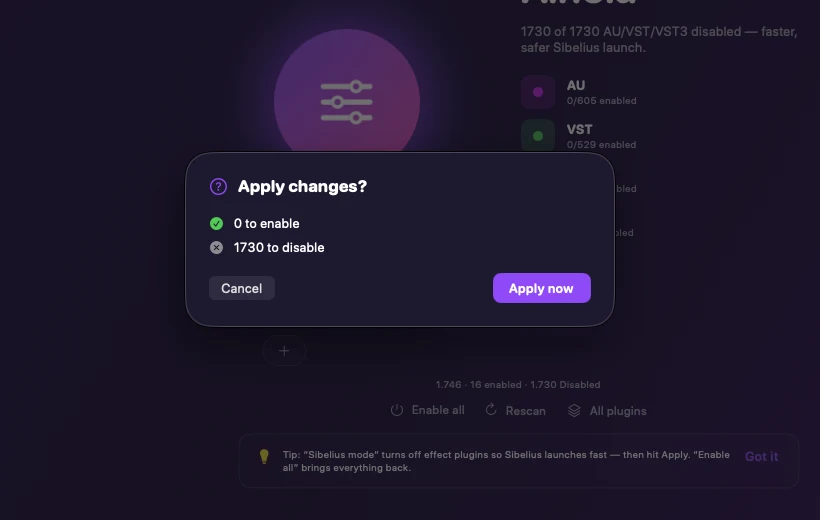
Ainola does the same thing without moving files around by hand, and without hiding plugins from the rest of your studio. Its Sibelius mode disables every AU, VST and VST3 except your playback engine, so the engine initializes and Sibelius opens, and re-enables your whole library the moment you switch back to your DAW. Nothing is ever deleted, every change is one click from undo.
- Download Ainola and open it.
- Click Sibelius mode.
- Review the staged changes and apply them with one password prompt.
- Open Sibelius. The playback system initializes and the app opens.
Related questions
What does error initializing playback system mean? +
It means Sibelius could not finish starting its audio engine. That step scans your audio plugins, and a bad or slow plugin stops it, so the message appears or Sibelius quits.
Will I lose my plugins? +
No. Disabling only renames a file so hosts stop loading it. Re-enabling restores it exactly.
Which macOS versions are supported? +
macOS 12 Monterey or later, on Apple Silicon and Intel.
Sources
- Avid Knowledge Base, Sibelius crash: error initializing playback system (official troubleshooting).
- Avid Knowledge Base, using an external MIDI playback device with Sibelius.
- Apple Support, where third-party Audio Units plug-ins are installed on Mac.
More fixes: crashing on startup, will not open, stuck scanning plugins, slow to open, Sibelius 2026.5 slow to open.