 Ainola

Covers FL Studio 2024 and later on a Mac, where it loads AU, VST, VST 3 and CLAP plugins. It does not cover a project that is slow to open, or a plugin that crashes FL Studio after it has opened.
Why FL Studio gets stuck on the plugin scan
One plugin stalls the scan. FL Studio looks for plugins in the system plugin folders, and Native Instruments' guide for FL Studio 20 on Mac notes that it scans them at startup (Native Instruments support). A scan with Verify plugins on opens each plugin to sort it into synths and effects, which Image-Line says is much slower than a fast scan. If a plugin shows a pop-up during that scan, you have to answer it before the scan continues (FL Studio manual, File settings). A licence or settings window hidden behind FL Studio looks exactly like a hang.
Mac users describe the Plugin Manager stopping on Scanning [AU] and never finishing, even with no AU plugins in use (Image-Line forum, community report), and scans that take 15 to 30 minutes with failed plugins every time (Image-Line forum, community report). A slow first verified scan after an update or a big install is normal. A scan that never finishes, or stops on the same plugin each time, is what this page is about.
Why one plugin can be scanned four times
On a Mac, FL Studio reads four plugin folders: VST, VST3, Components for AU and, since FL Studio 2024.1, CLAP (FL Studio manual, Installing plugins). Many installers put a plugin in several of them, and each format is a separate file, so one synth can be four entries for FL Studio to open. The Plugin Manager list shows which format each entry is.
FL Studio gives you little control over that. Custom search paths are for VST 1 and VST 2 plugins only, VST 3 and AU plugins must be in the default system locations, and the default paths cannot be removed (FL Studio manual, File settings). We found no setting on that page that leaves a format or a single plugin out of the scan. Mac users have asked how to exclude AU plugins from FL Studio (Image-Line forum, community report) and how to choose AU or VST3 when both are installed (Image-Line forum, community report).
Look for a hidden pop-up first
It costs a minute and often ends the hang.
- Leave the scan running. Press F3 or swipe up with three fingers to open Mission Control, and look for a small window from a plugin, such as a licence, registration or settings dialog.
- Answer it. The scan should move on to the next plugin.
- Note which plugin it was. Update it, or activate its licence in the maker's own app, so the same window does not hold the next scan.
The Plugin Manager also has Try to prevent popup windows. Image-Line says it hides some pop-ups during a Verify plugins scan but not all, and that it is off by default because a hidden pop-up can make the plugin fail the scan.
Rescan in the Plugin Manager
This is Image-Line's own fix for plugins that fail or go missing (Image-Line knowledge base):
- In FL Studio choose Options, then File settings, then Manage plugins.
- Turn on Verify plugins, Rescan previously verified plugins and Rescan plugins with errors.
- Click Find plugins and let the scan run. Answer any plugin window that appears.
- When it finishes, look at the Status of each plugin. It shows OK or Error from the last scan, so the plugins marked Error are the ones to update.
On a Mac with Apple Silicon, Image-Line says to rescan the first time you use FL Studio in each mode, native or Rosetta (FL Studio manual, Installing plugins). If one format of a plugin misbehaves, the same page suggests trying its other format.
When FL Studio will not open at all
Not every startup hang is a plugin. Image-Line's macOS checklist for FL Studio not starting begins elsewhere: on macOS Tahoe, the Waves SoundGrid driver can stop FL Studio from starting, and the checklist suggests uninstalling the driver temporarily. Other steps cover closing Keyboard Viewer, giving FL Studio access to the Documents folder and keeping the user data folder off iCloud (Image-Line knowledge base). Work through those first.
Resetting FL Studio's settings is in the same list. Image-Line's Diagnostics tool does it, and if FL Studio will not open you can run fldiagnostic.app from inside the FL Studio app package (FL Studio manual, Reset settings). A reset brings back default Audio, MIDI, General and File settings, so take screenshots of them first.
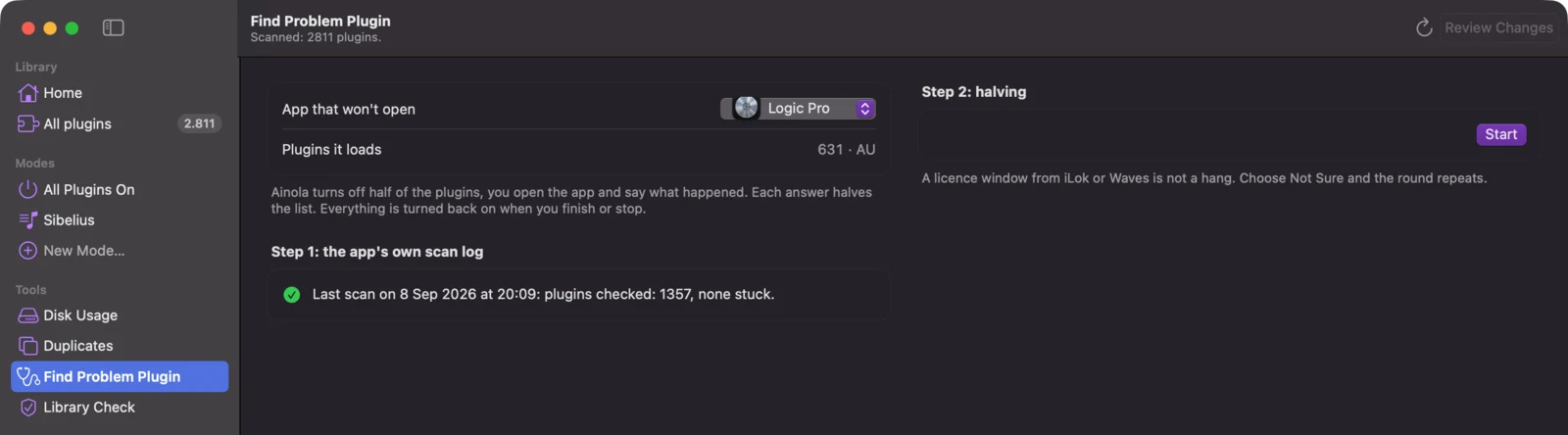
Find the plugin by moving plugins half at a time
Because the default folders cannot be taken out of the scan, the plugins have to come out of the folders. This is not an Image-Line procedure, it is the usual way to find one bad file among many:
- Quit FL Studio, or force quit it if it is stuck.
- In Finder choose Go, then Go to Folder, and open
/Library/. The other folders FL Studio reads areAudio/ Plug-Ins/ VST3 Components,VSTandCLAPin the same place, and the same names under~/Library/.Audio/ Plug-Ins - Make a folder such as Plugins on hold on your Desktop. Select half of the plugins, press Command-C, open the new folder and press Command-Option-V, which moves them instead of copying. Do it in every format folder, so all copies of a plugin end up on the same side.
- Open FL Studio and run the scan. If it finishes, the plugin is in the half you moved; if not, it is in the half that stayed. Keep halving that group.
- Put every plugin back except the one that breaks the scan, then rescan with Verify plugins on. Update that plugin or leave it out.
Moving a plugin out of its folder takes it away from every app on the Mac, not only FL Studio. Logic Pro and GarageBand read the same Components folder, so put the AU plugins back before you open them.