 Ainola

Covers Ableton Live 11 and 12 on a Mac. It does not cover one Live Set that crashes when you open it, although the Option trick below helps there too.
Why Live crashes or freezes on startup
Live checks your plug-ins every time it opens, and one bad plugin can take the whole launch down. Ableton's manual says that some VST plug-ins contain errors or are incompatible with Live and may crash it during the scan (Live 12 manual). Ableton names outdated plug-ins as "very often the cause" of crashes (Ableton Help).
There are two ways it shows up. A plugin that crashes the scan makes Live quit, and Live notices it at the next launch. A plugin that hangs leaves Live stuck while it opens, and because nothing crashed, no dialog names it. Ableton says Live should normally open in 3 to 10 seconds (Ableton Help), so a launch that takes minutes is worth checking the same way.
Open Live without plug-ins first
This is Ableton's own test, and it is a good one (Ableton Help):
- Quit Live, or force quit it with Command-Option-Esc if it is stuck.
- Open Live and hold Option right away. Keep holding it until Live has fully opened and the splash screen has closed.
- Live opens without scanning third-party plug-ins. Your own plugins are missing for this launch only.
- The next normal launch scans plug-ins again.
If Live opens with Option held and crashes or hangs without it, a plugin is the cause. If Live still will not open with Option held, the problem is somewhere else: skip to when it is not a plugin.
When Live names the plugin
After a crash during the scan, Live tells you which plugin did it. Ableton's manual describes it: when you relaunch, a dialog names the plugin that caused the crash and, depending on what Live detects, offers to scan again or to make that plugin unavailable. If you scan again and the same plugin crashes Live a second time, Live makes it unavailable on its own. An unavailable plugin does not appear in Live's browser and is not scanned again until you reinstall it (Live 12 manual).
- Make the plugin unavailable so Live can open.
- Update the plugin from its maker and remove older versions, as Ableton advises (Ableton Help).
- Reinstall it, then let Live scan it again.
Live does this only for a crash it catches during the scan. A plugin that hangs the launch gets no dialog. A community report on the Ableton forum also describes plugins on Live 12 that crashed the scan and then disappeared from the browser, a different one each time (community report). That is the same rule at work: check for missing plugins after a crash.
Narrow it down by format in Live's settings
Live can turn whole plug-in sources off. In the Plug-Ins settings, under Plug-In Sources, Live has a switch for Audio Units and switches for the VST plug-in system folders and a custom folder (Live 12 manual, Ableton Help). Ableton suggests turning all plug-in folders off there to test whether plug-ins cause a problem (Ableton Help).
- Open Live with Option held, then press Command-comma and open the Plug-Ins tab.
- Turn off Use Audio Units, leave the VST sources on, and quit Live.
- Open Live normally. If it opens, the plugin is an Audio Unit. If it still crashes or hangs, it is a VST2 or VST3 plugin.
- Repeat with the VST sources to find the format, then turn every source you use back on.
These switches work per format and folder, not per plugin. Users have asked Ableton for a way to disable single plugins at startup without uninstalling them (community report). To keep one plugin out, Ableton's advice is to move its file out of the plug-in folder.
Find the one plugin by halving
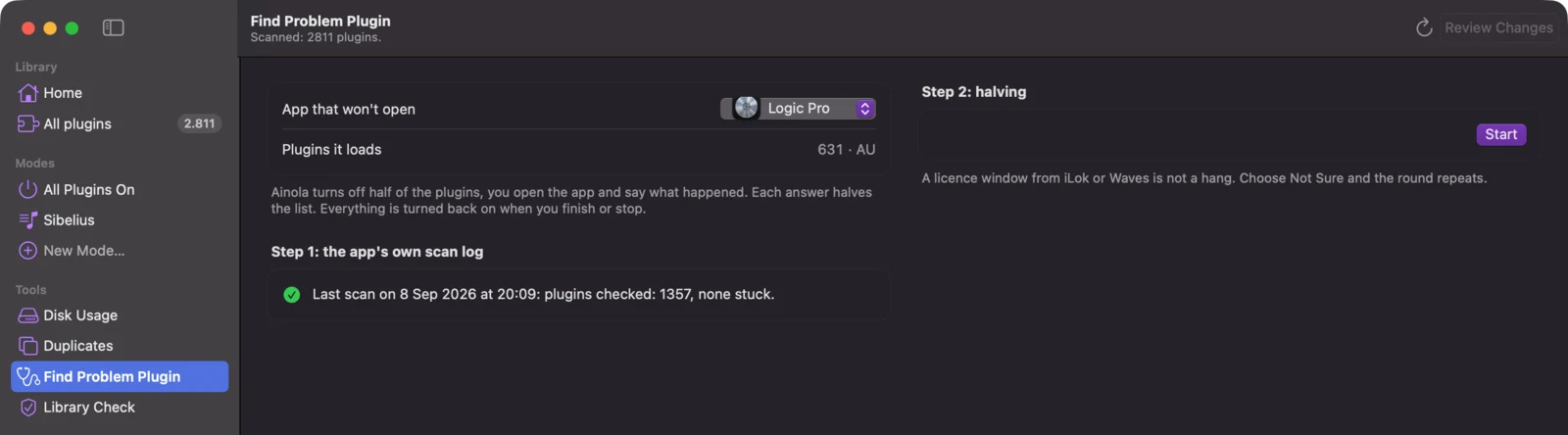
Ableton says you can move a plugin file out of the folder where it is installed so Live does not scan it (Ableton Help). With many plugins, move half at a time:
- Quit Live.
- In Finder choose Go, then Go to Folder, and open the folder for the format you found:
/Library/for Audio Units,Audio/ Plug-Ins/ Components /Library/for VST2 orAudio/ Plug-Ins/ VST /Library/for VST3. Check the same path underAudio/ Plug-Ins/ VST3 ~/Librarytoo (Ableton Help). - Make a folder such as Plugins out on your Desktop. Select half of the plugins, press Command-C, open the new folder and press Command-Option-V, which moves them instead of copying. Your Mac may ask for your password.
- Open Live normally. If it opens, the plugin is in the half you moved; if not, it is in the half that stayed. Keep halving that group.
- Put every plugin back except the one that breaks the launch, then update it or leave it out.
Other apps on your Mac use the same folders, so a plugin you moved out is gone for Logic Pro and every other host as well until you put it back.
When it is not a plugin
If Live hangs even with Option held, look at settings and devices. Ableton's checklist for a slow or hanging launch (Ableton Help):
- Reset Live: quit it, then move
Preferences.cfgfrom~/Library/to the Desktop. If that does not help, move it back to keep your settings (Ableton Help). After a reset you turn your plug-in sources and audio devices on again.Preferences/ Ableton/ Live 12.x.x - Shut down, unplug every USB and Thunderbolt device, start up and open Live. Then reconnect devices one at a time.
- Update MIDI drivers, other music software and third-party Max for Live devices.
- Keep Places in Live's browser to a few folders, not whole drives.
In one Ableton forum thread, a Live 11 user on macOS Sonoma whose Live hung at startup fixed it by resetting Live (community report). Not every startup crash is a plugin.